How to Install Theme and Plugin in WordPress

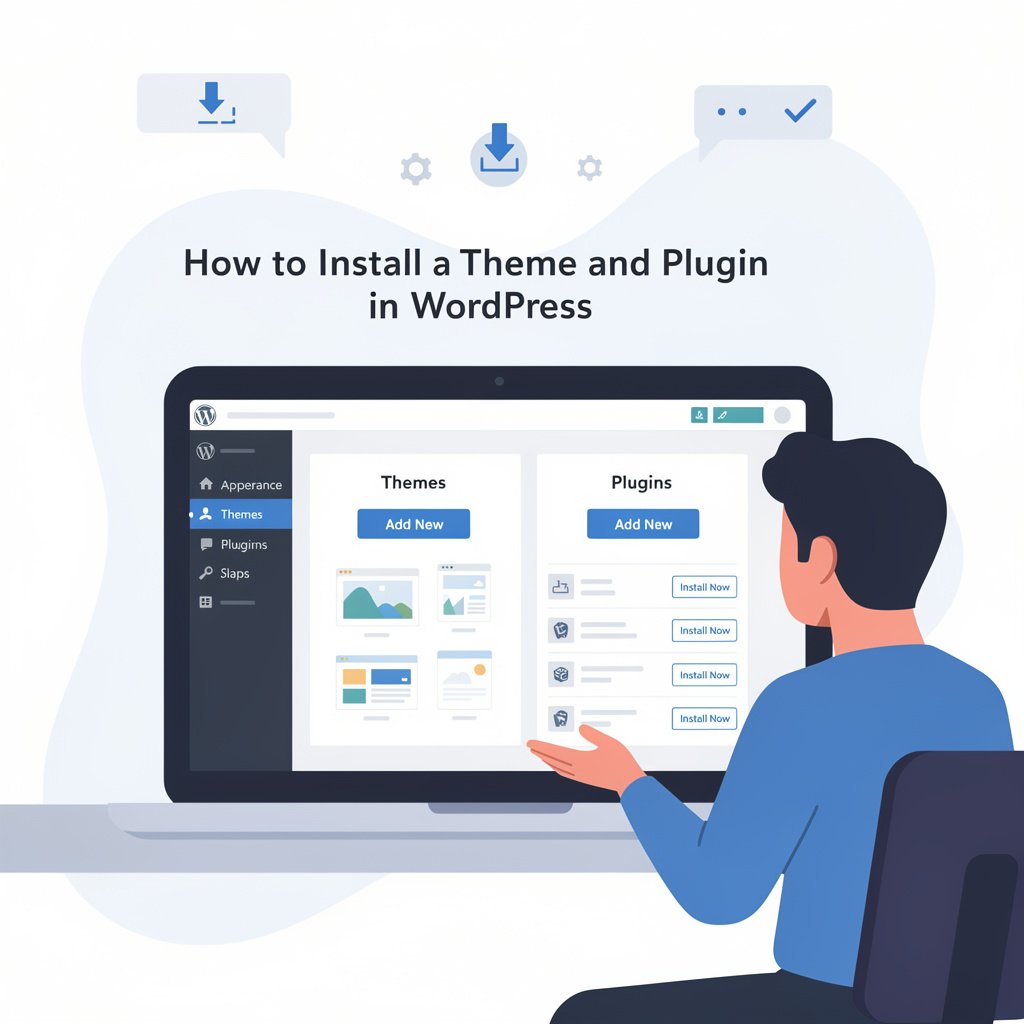
How to Install Theme and Plugin in worldpress ,Installing themes and plugins is the fastest way to customize your WordPress website’s design and functionality. Themes completely control how your site looks to visitors, while plugins add powerful features like contact forms, e-commerce stores, or SEO optimization.
Whether you want to build a personal blog, business website, or digital store, this absolute beginner’s guide provides clear, step-by-step methods to get your platform up and running.
What is a WordPress Theme?
A WordPress theme is a collection of files that work together to create the visual style and design layout of your website. This includes your site’s typography, color palettes, headers, footers, and page templates.
Think of WordPress as the engine of a car; the theme is the car’s exterior shell, paint color, and interior seats. Changing your theme alters the style without erasing your core data or content.
Method 1:Installing a Free Theme via the WordPress Directory
The easiest way to find and install a theme is through the official, built-in WordPress library. These themes are thoroughly checked for safety and compliance.
- Log in to your WordPress Dashboard.
- In the left-hand menu, hover over Appearance and click Themes.
- Click the Add New Theme button located at the top of the page.
- Browse popular choices or use the search bar to find a specific style (e.g., Astra, OceanWP).
- Hover your mouse over the theme preview and click the blue Install button.
- Once the installation completes, click Activate to apply the look to your site.
[WordPress Dashboard] ➔ [Appearance] ➔ [Themes] ➔ [Add New] ➔ [Search] ➔ [I
Method 2: Manually Uploading a Premium Theme (.ZIP File)
If you purchase a premium, feature-rich layout from marketplaces like ThemeForest or Envato Elements, you will receive a compressed .zip folder.
- Download the theme’s
.zipfile to your computer. (Note: If the file is a massive package containing documentation, unzip it first to find the primary installable theme folder inside). - Go to Appearance > Themes in your WordPress dashboard.
- Click Add New Theme, then click the Upload Theme button at the top
- Click Choose File and select your theme’s
. zipdocument from your local storage.- Click Install Now.
- Wait for the processing to finish, then click Activate.

What is a WordPress Plugin?
- A WordPress plugin is a software add-on that connects directly to your site to expand its utility. If your theme handles the look, plugins handle the action. Plugins let you turn a simple blog into an
- interactive online environment. For example:
- Contact Forms: Allow users to email you securely via WPForms.
- Speed Optimization: Improve page load speeds using WP Rocket.
- SEO Boosters: Help you rank on Google search result pages via Yoast SEO.
Method 1: Installing a Plugin using Dashboard Search
Like themes, thousands of free tools exist inside the native marketplace ecosystem.
- Navigate to the left sidebar menu and click Plugins > Add New.
- Use the search bar in the top-right corner to search for the specific plugin or feature you want.
- Locate the correct tool from the search grid. Check the ratings and active installation numbers to ensure reliability.
- Click the Install Now button next to it.
- After a few moments, the button will turn into a blue activation key. Click Activate.
- Watch this brief, clear guide to see exactly where to click inside your dashboard to search, install, and activate tools:
Method 2: Manually Uploading Premium Plugins
Paid or custom plugins purchased from external developers are also installed by uploading a compressed archive file directly to your system dashboard.
- Download the plugin package file (which must remain formatted as a .zip file) from your vendor account.
- In WordPress, go to Plugins > Add New
- Click Upload Plugin at the very top of your workspace screen.
- Click Choose File, select your downloaded archive file, and click Install Now.
- Click Activate Plugin to launch its configuration layout menu.
Best Practices and Common Errors
While managing your web layout is straightforward, keeping a few safety habits in mind ensures your site runs smoothly.
The Power of “One Active Theme”
You can download as many theme variations onto your system as you like, but only one layout theme can be active at a single time. Keep one or two default backup layouts (like the stock Twenty Twenty-Four layout) and delete the rest to clear storage space and prevent hidden code vulnerabilities.
Don’t Overload on Plugins
Every active tool uses your hosting server’s processing power. Installing too many extensions simultaneously can dramatically slow down your page speeds or create software conflicts. Stick to what is absolutely necessary.
Keep Things Updated
Outdated code is the primary doorway for hackers. Always update your themes and plugins when notifications appear on your dashboard panel. Always execute a full backup before applying major system upgrades.
Frequently Asked Questions (FAQs)
1. Why am I seeing a “Missing style.css stylesheet” error when installing a theme?
This is the most common error for premium designs. It happens because you uploaded the master package archive instead of just the inner layout file. To fix this, unzip your purchase folder, locate the inner file named exactly themename.zip, and upload that file instead.
2. What is the difference between installing and activating?
nstalling: Downloads the application code files from the cloud catalog directly onto your website’s server hard drive. It sits idle in your storage repository.
Activating: Runs the software, applies its code to your website, and opens its controls for customization.
3. Why can’t I see the “Add New” button for plugins on my site?
If you are using WordPress.com, you must be subscribed to their Creator or Enterprise tier plans to upload custom plugins or third-party themes. If you are on a Free or Personal plan, this feature is locked. If you run a self-hosted WordPress.org setup, verify with your administrator that your user profile has full “Administrator” permissions rather than “Editor” permissions.
4. Will deleting a plugin erase my website data?
Deactivating or deleting a plugin safely stops it from executing code scripts on your pages. In most cases, your created data remains safely stored inside your primary SQL database tables. If you reinstall that specific extension later, your previous configurations will often reappear automatically.